Cortiq Copilot
Copilot is the assistant that lives inside the Cortiq desktop app. It reads your data, answers questions about your trading, and authors entities — playbooks, data packages, preparation, sentiment, research — through the same tool surface and the same approval gate as an external MCP client, without you leaving the app.
What this is
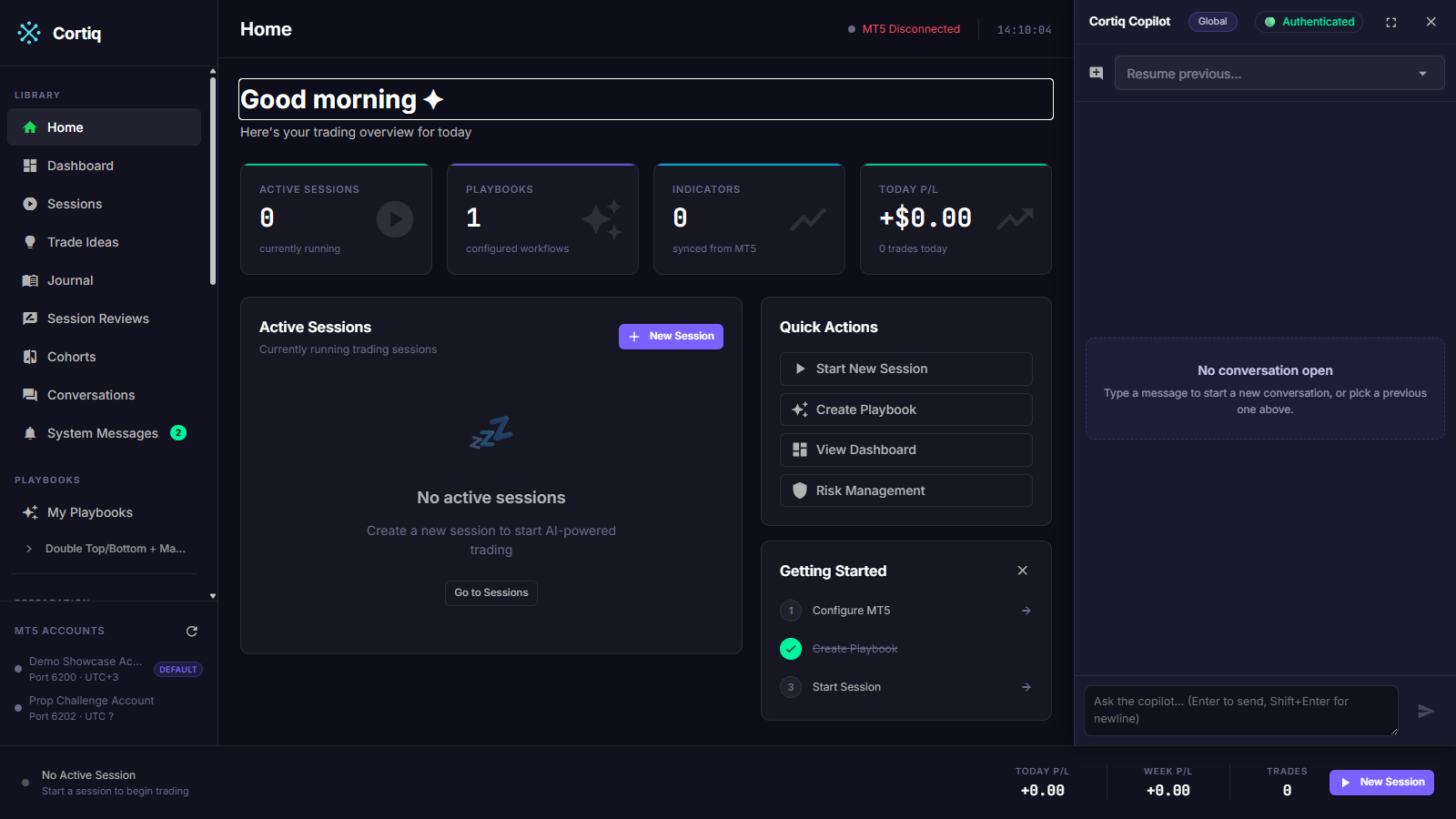
Section titled “What this is”Copilot is a dock you open over any page. Behind it sits one of your configured AI transports — an ACP local agent, a CLI tool, or a direct API provider — wired to Cortiq’s in-process tools. You talk to it in plain language; it calls Cortiq tools to do the work.
Unlike an External MCP session, you don’t connect an outside client or edit a config file. Copilot uses the provider you already set up under Settings → AI Providers, and it runs in the app’s process, so its changes appear in the UI immediately.
Copilot is not a trading loop. It does not run sessions autonomously. It is an assistant you ask to build and edit things, look up trades, and explain what happened — with a hard gate in front of any real order.
Who this is for
Section titled “Who this is for”Use Copilot when you want:
- To author or edit a playbook, data package, preparation package, sentiment report, instrument profile, or research run by describing it instead of filling forms.
- Quick answers about your sessions, trades, and weekly performance without navigating to a page.
- An assistant that drives the app for you while you stay in control of execution.
It is not the right surface for hands-off autonomous trading — that is what sessions are for.
How to use it
Section titled “How to use it”Open the dock
Section titled “Open the dock”Open Copilot with the toggle button in the sidebar, or press Ctrl+K. The dock slides in over the current page; press the toggle or shortcut again to close it. When Copilot needs your decision on an action, it auto-opens so the approval card is always visible.
What Copilot can do
Section titled “What Copilot can do”Copilot authors and edits Cortiq entities through tool calls, and it uses on-page surfaces when you have the matching editor open. It can:
- Create and edit playbooks, data packages, preparation packages, sentiment reports, and instrument profiles.
- Start and read research runs.
- Look up sessions, trades, trade ideas, and statistics.
- Answer weekly trade questions — “give me the trades I took this week” — using a trusted, in-process context block of your trading week (account numbers, raw reasoning, and journal notes are withheld from that context).
The full Cortiq tool surface is available to Copilot, the same families described in MCP and agent integration.
The approval gate
Section titled “The approval gate”Copilot runs in the trusted-Cortiq posture: it authors entities without prompting you for each one. The one exception is trade execution. Only execute_trade and execute_trade_action raise an approval card — opening, modifying, or closing a real position. When that happens, Copilot shows an inline action card in the dock, fires a Windows toast, and writes an actionable row to the System Messages inbox. The trade runs only when you approve; a reject, expiry, or timeout denies it.
Capability grants and auto-mode
Section titled “Capability grants and auto-mode”When Copilot runs on a local ACP agent, that agent has its own built-in tools — web access, filesystem, shell. Those are governed by a separate, persistable grant store. The first time the agent needs a capability outside its sandbox, Cortiq surfaces an actionable request; once you grant it, the capability is remembered and auto-allowed on every future call, in any session.
Auto-mode (on by default) lets safe capabilities — web access — auto-allow even in an unattended session, so a long-running agent never hangs waiting for a click. Sensitive capabilities (filesystem outside the sandbox, shell) always ask, regardless of auto-mode. You manage grants and the auto-mode toggle under Agent permissions in Settings.
None of these grants touch trade execution. Trade approval stays on its own gate no matter what else you’ve granted.
What to read next
Section titled “What to read next”- Agent permissions — the trade gate, the filesystem sandbox, and the capability grant store in full.
- MCP and agent integration — drive the same tools from Claude Desktop, Claude Code, or Codex.
- AI providers — configure the transport Copilot runs on.