System messages
System Messages is the inbox inside the Cortiq app where background processes, trades, risk events, MT5 health, and permission requests post durable, click-through notifications. It is in-app only — separate from the Windows toasts and X / Telegram posts that broadcast your trades. This page covers what lands there, how toasts are gated, and how permission requests become actionable cards.
What this is
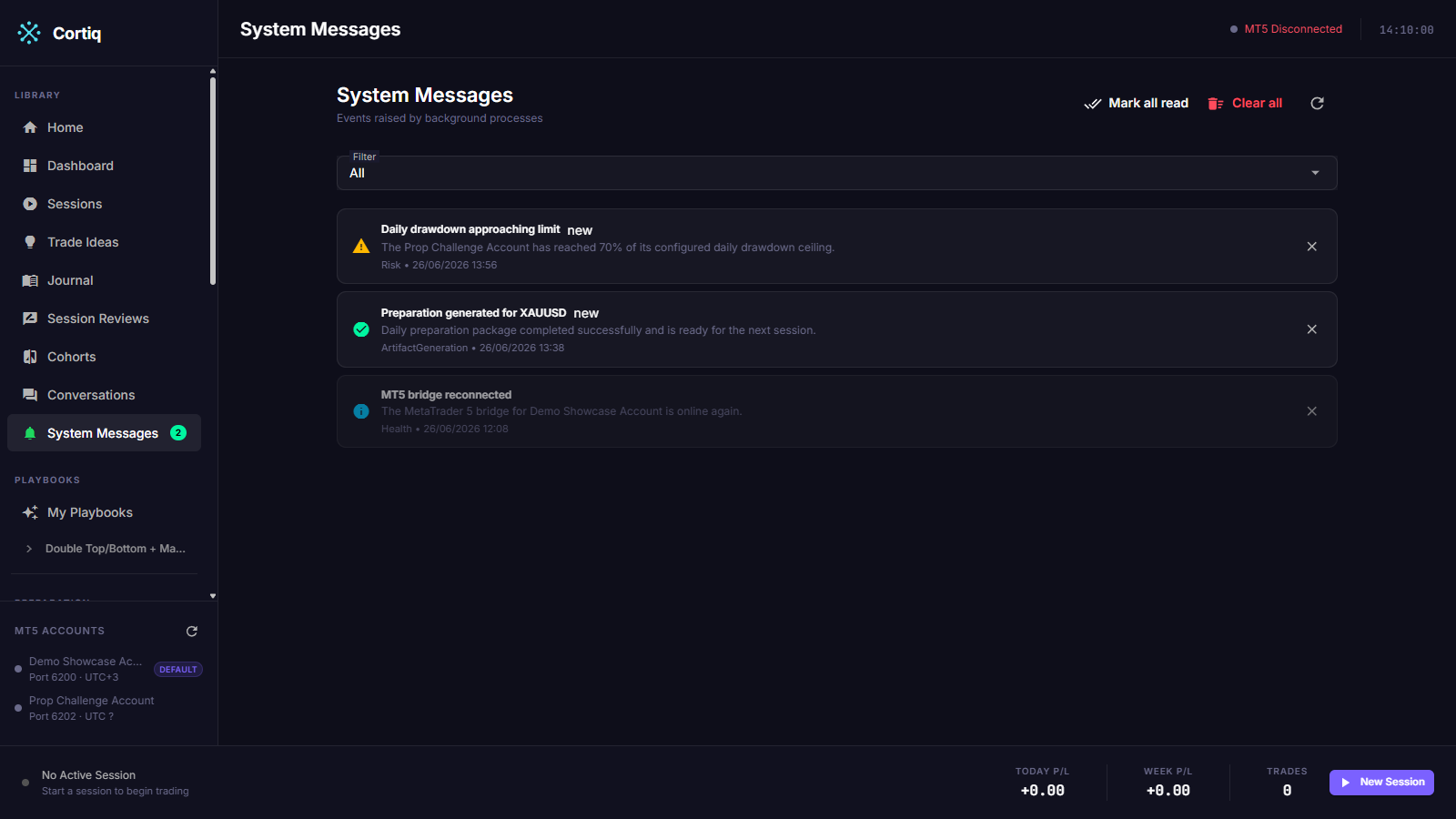
Section titled “What this is”Background services in Cortiq generate events all the time: an artifact finished generating, a session got risk-paused, the MT5 feed dropped, an agent needs a capability. System Messages collects those into one persisted, filterable list with an unread badge.
Each message is durable — it stays in the inbox until you read or clear it — and most carry a deep link to the artifact or page they’re about. Higher-severity events also pop a toast so you notice them in the moment; routine ones land quietly with an unread count.
Open it from System Messages in the sidebar’s Library section. The route is /system-messages.
How it fits into Cortiq
Section titled “How it fits into Cortiq”Cortiq has three notification surfaces; this is one of them.
| Surface | Where it goes | What it carries |
|---|---|---|
| System Messages | In-app inbox (/system-messages) | Background, trade, risk, health, and permission events. |
| Windows toasts | Desktop notification center | Trade events and trade-approval prompts. |
| X / Telegram | External channels | Public or private broadcast of trade events. |
System Messages is the only one of the three that is fully in-app and the only one that carries permission and background-process events. See Execution modes & notifications for the external channels.
How to use it
Section titled “How to use it”Read and filter the inbox
Section titled “Read and filter the inbox”The inbox lists messages newest-first. Filter by All, Unread, or a category (ArtifactGeneration, Risk, Health, Trade, Permission). Click a row to mark it read and jump to its linked page. Each row has a delete control; the toolbar offers mark all read and clear all.
The unread badge
Section titled “The unread badge”The System Messages sidebar entry carries an unread-count badge. It updates as messages arrive and as you read them, so the count reflects what’s actually waiting.
Toast gating
Section titled “Toast gating”Not every message interrupts you. Severity decides:
- Warning and Error messages toast automatically.
- Info and Success messages land silently in the inbox with an unread badge.
A few key events override this to toast a success — for example, a finished preparation package — but the default keeps routine activity quiet.
Actionable permission cards
Section titled “Actionable permission cards”Most messages are read-only. Permission messages are the exception: they are actionable. When an agent requests a capability that hasn’t been granted — web access for research, say — the request lands here as a card with Allow and Deny buttons.
Clicking either resolves the same request the Copilot dock and the Windows toast are showing — they’re three views of one decision. Allow records the grant and the agent proceeds; Deny, or letting the agent’s turn time out, fails the request closed. Interactive permission requests are Warning severity and toast; unattended auto-allows are logged as silent Info rows for the audit trail.
Reference
Section titled “Reference”Categories
Section titled “Categories”| Category | Example events |
|---|---|
ArtifactGeneration | A preparation package finished generating, or generation failed. |
Risk | A session was risk-paused after hitting a limit. |
Health | The MT5 broker feed went down or was restored; a scheduled report was generated. |
Trade | A trade opened, closed, failed, had SL/TP moved, was partially closed, or an approval was proposed, rejected, or expired. |
Permission | An agent capability request — the only actionable type. |
Severities
Section titled “Severities”| Severity | Toasts by default |
|---|---|
Info | No |
Success | No (some key events override to toast) |
Warning | Yes |
Error | Yes |
What it does not do
Section titled “What it does not do”- It does not post to Windows toasts for background events, nor to X or Telegram — those carry trade events only.
- It does not emit session-lifecycle messages (started, stopped, failed). Those surface on the session and dashboard.
- It has no per-category mute; gating is by severity and emitter only.
What to read next
Section titled “What to read next”- Execution modes & notifications — the external channels that broadcast trade events.
- Agent permissions — what the actionable permission cards grant and how to manage them.
- Cortiq Copilot — the assistant whose actions and requests surface here.