Installation & activation
This page takes you from buying a license to a running, activated Cortiq install. By the end you’ll have the desktop app open and ready for First 30 minutes in Cortiq.
What this is
Section titled “What this is”Cortiq is a one-time purchase: €199, lifetime v1.x updates, no subscription. One key activates up to two machines. Purchases are processed by Stripe and the key is emailed to you instantly. If Cortiq isn’t for you, there’s a 14-day refund.
The app is distributed as a Windows installer — Cortiq-win-Setup.exe — through GitHub Releases. The installer is not yet code-signed, so Windows SmartScreen shows an “unknown publisher” notice the first time you run it; you click through it once. Activation happens inside the app: you install once and paste your key once.
How it fits into Cortiq
Section titled “How it fits into Cortiq”| Step | Where | Outcome |
|---|---|---|
| 1. Buy a license | cortiq.trade pricing | A CRTQ-XXXX-XXXX-XXXX-XXXX key emailed to you. |
| 2. Download the installer | GitHub Releases | Cortiq-win-Setup.exe on disk. |
| 3. Run the installer | Cortiq-win-Setup.exe (click past SmartScreen) | Cortiq appears in the Start menu. |
| 4. Activate | Settings → License inside the app | License state is active. |
After activation, the rest of first-day setup happens in Settings → MT5 Accounts, Settings → AI Providers, and Library → Sessions.
How to use it
Section titled “How to use it”1. Buy a license
Section titled “1. Buy a license”Buy from the pricing section at cortiq.trade. Checkout runs through Stripe; the CRTQ-XXXX-XXXX-XXXX-XXXX key arrives by email straight after payment. The same key activates up to two machines, so you don’t need a second purchase for a laptop and a desktop.
2. Download the installer
Section titled “2. Download the installer”The current public build lives in GitHub Releases:
- Latest release page: https://github.com/simeon-vanov/cortiq-public/releases/latest
- Direct download: https://github.com/simeon-vanov/cortiq-public/releases/latest/download/Cortiq-win-Setup.exe
Download Cortiq-win-Setup.exe to the Windows machine that will run Cortiq. Install it on the same machine as your MetaTrader 5 terminal if you intend to trade live.
3. Run the installer
Section titled “3. Run the installer”Double-click Cortiq-win-Setup.exe. The installer is not yet code-signed, so Windows SmartScreen may show an “unknown publisher” notice the first time. Choose More info → Run anyway to continue. The installer is per-user and needs no admin rights; it installs in a couple of clicks and adds a Start-menu shortcut.
If you’d rather verify the download first, the releases page lists every release with its checksums.

Cortiq now appears in the Start menu.
4. Open Cortiq and activate
Section titled “4. Open Cortiq and activate”Launch the app and open Settings → License. Paste the key from your purchase email — Cortiq validates it against the licensing backend and records the activation on this machine. There’s an optional email field that supports the multi-machine activation.
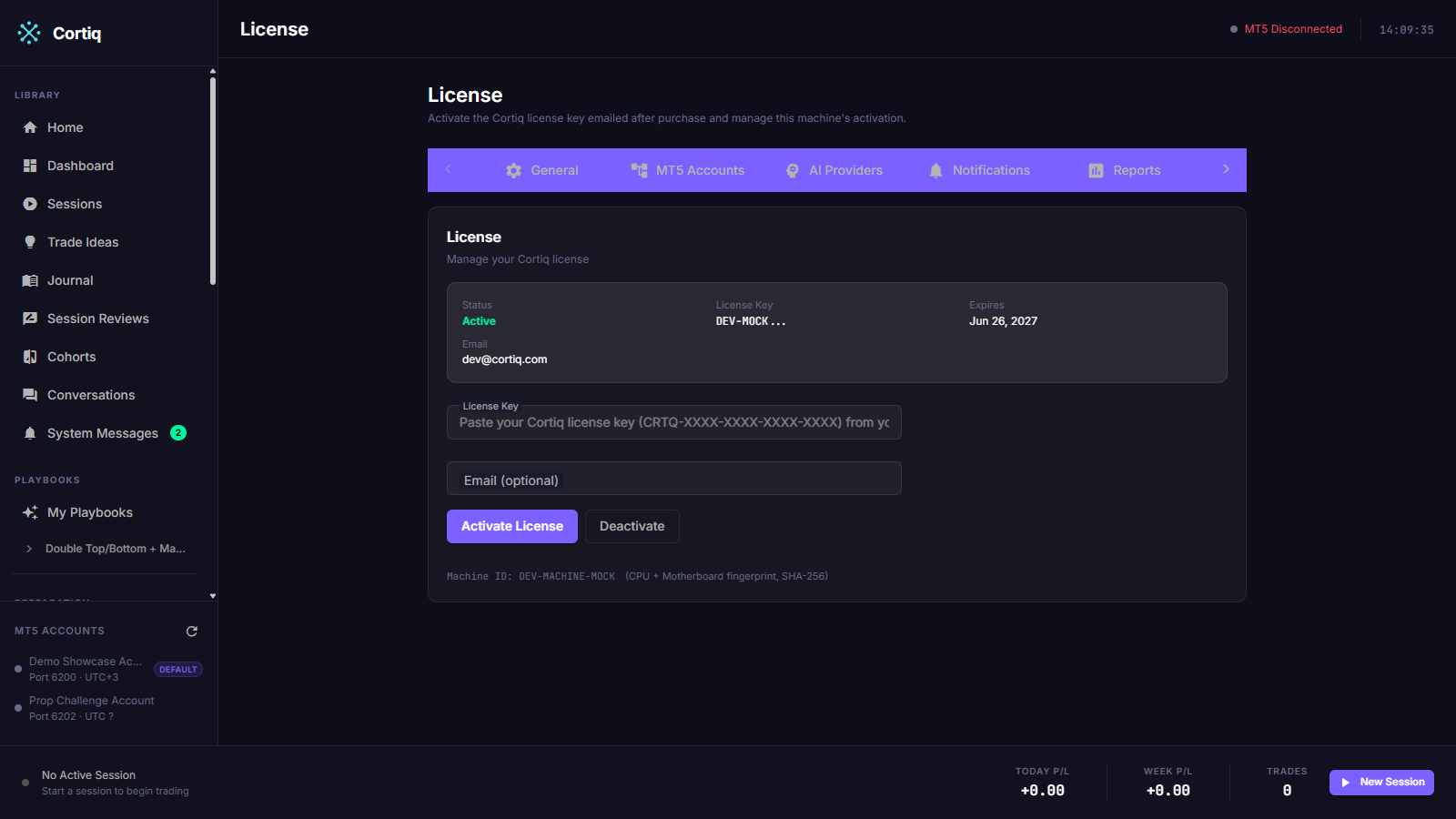
When the License page shows the activation as active, you’re done. Cortiq stores the state locally.
5. Move on to first-day setup
Section titled “5. Move on to first-day setup”The next pages to read:
- MetaTrader 5 integration — connect Cortiq to your MT5 terminal.
- AI providers — configure at least one provider.
- First 30 minutes in Cortiq — guided walkthrough to a virtual session.
How license enforcement works
Section titled “How license enforcement works”Cortiq checks your license locally and re-verifies it against the backend periodically. The re-verification is fail-open with a 14-day grace window: if the backend is briefly unreachable, an otherwise-valid license keeps working as long as it was successfully verified within the last 14 days. After 14 days with no successful re-verify, sessions are blocked until verification succeeds again.
A valid license is required to start any MT5-bound session — including virtual and broker-demo sessions. The one exception is backtesting, which is always license-free. When the license is effectively invalid, Cortiq shows a non-dismissible red banner.
How updates work
Section titled “How updates work”New versions install themselves. Cortiq’s updater polls the public release feed in the background and downloads the next version when one is available. It applies the update on restart, and only in a safe window — no session is active and no trade is open. You never re-download the installer for an update; you only use Cortiq-win-Setup.exe for the first install.
Reference
Section titled “Reference”| Field | Where | Notes |
|---|---|---|
| Price | cortiq.trade pricing | €199 one-time; lifetime v1.x updates; 14-day refund. |
| Machines per key | Settings → License | One key activates up to two machines. |
| Key format | CRTQ-XXXX-XXXX-XXXX-XXXX | Four groups; activated on first launch. |
| License page | Settings → License | Shows current state and the activation form. |
| Installer | releases/latest/download/Cortiq-win-Setup.exe | Velopack installer; always the current build. |
| Enforcement | — | Fail-open re-verify, 14-day grace; only backtests are license-free. |
Common questions
Section titled “Common questions”How many machines can I run on one key?
Up to two. Activate the second machine the same way — paste the key in Settings → License.
Activation fails — what’s wrong?
Check, in order:
- The key was copied exactly as issued (no leading or trailing whitespace).
- The machine has internet access for license verification.
- The release you installed is current.
- You haven’t already activated two machines on this key.
If none of those resolve it, continue to Licensing & support.
Can I get a refund?
Yes, within 14 days of purchase, through the Stripe checkout. See Licensing & support.
Does Cortiq need to be installed alongside MT5?
Yes, on the same Windows machine, if you intend to trade live. The MT5 bridge uses local ZeroMQ and assumes both processes share the same OS.
What to read next
Section titled “What to read next”- First 30 minutes in Cortiq — your next stop after activation.
- MetaTrader 5 integration — wire in MT5 before any trading.
- AI providers — configure at least one provider.