Execution modes & notifications
This page covers how a Cortiq session acts on the AI’s decision and the notification surface that surrounds it. By the end you’ll know when to run virtual, live, or external-MCP, how virtual differs from backtesting, and how to receive trade events on the channels you already check.
What this is
Section titled “What this is”A session has to do something with the AI’s decision. Cortiq has one execution toggle — virtual vs live — and one transport choice that changes who drives the loop. A virtual session simulates the trade lifecycle on the live feed without sending an MT5 order; a live session sends real orders through the connected account. An external-MCP session hands the loop to an outside agent rather than the built-in cycle engine.
The split exists because users move through phases: most start in virtual mode to rehearse the workflow on today’s market, then graduate to live on one account once the journals read well and risk settings are in place. Notifications run across all of these.
How it fits into Cortiq
Section titled “How it fits into Cortiq”| Mode | What it does | When to use |
|---|---|---|
| Virtual | Simulates the full trade lifecycle on the live feed without sending MT5 orders. | First runs, prop-firm challenges that restrict EAs, and any time you’re testing a configuration forward. |
| Live | Sends real orders to MT5 through the connected account. | Once virtual mode is producing readable journals and risk settings are configured. |
| External MCP | Hands the trading loop to an outside MCP agent instead of the built-in cycle engine. | Advanced; you want Claude Desktop, Codex, or another MCP client to drive the session. See MCP and agent integration. |
Notifications and scheduled reports run on top of every mode and are configured separately.
How to use it
Section titled “How to use it”Virtual versus live versus backtest
Section titled “Virtual versus live versus backtest”Three things get confused often. They run on different data and answer different questions.
- Virtual runs forward on the current market. Cortiq goes through every step — data gathering, AI decision, risk validation, journal entry — but skips sending the order to MT5. Use it to rehearse the operating loop and shadow a strategy on today’s feed without risking capital.
- Live runs forward on the current market and sends real orders. Don’t go live until MT5 connectivity is verified, the playbook is stable, the data package is focused, and risk settings are active.
- Backtest replays historical bars through the same decision pipeline so you can measure a playbook against the past. It is a separate run type, not a session execution mode, and it is the only run type that needs no license. See Backtesting.
So virtual is not backtesting: virtual is live-forward with no order, backtest is historical replay. Reach for virtual to validate the workflow on live conditions, and for backtesting to validate the edge against history.
Every session has its execution mode set at creation. You can switch a stopped session by editing it; you cannot change the mode of a running session.
Configure notifications
Section titled “Configure notifications”Notifications and reports live under the single Settings page. Open Settings → Notifications and enable the channels you want.
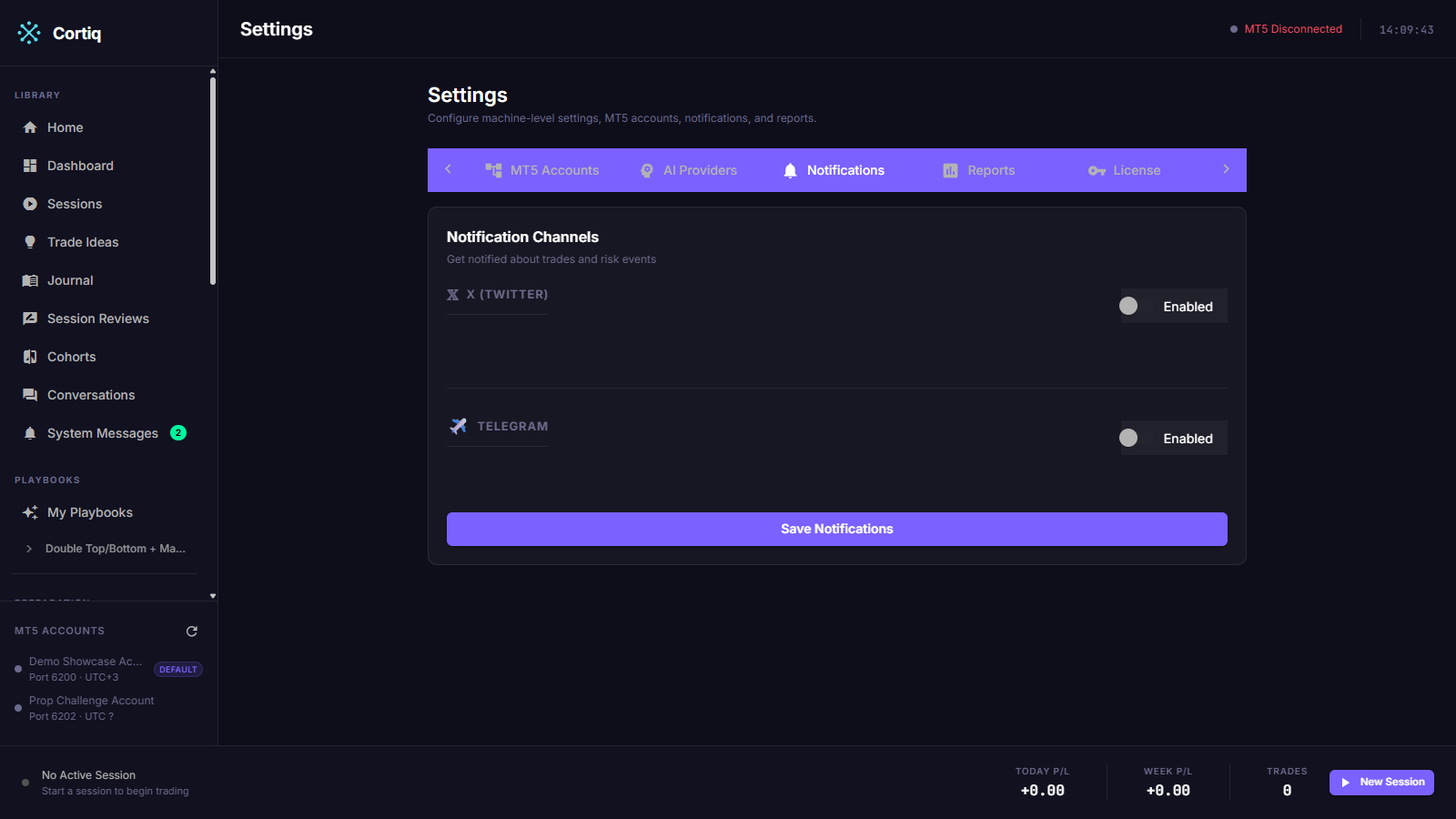
The three external channels:
- Windows notifications — immediate desktop awareness while you’re at the machine.
- X — public or semi-public posting workflows.
- Telegram — team or private channel monitoring; also used for scheduled reports.
For Telegram, paste a bot token and chat ID. For X, supply the four OAuth 1.0a credentials. The X and Telegram credentials are entered once per installation on the Settings page; the per-channel toggles are set per session on the session detail page.
Watch the System Messages inbox
Section titled “Watch the System Messages inbox”The three channels above push events out of Cortiq. Inside the app, the System Messages inbox is the notification center. It is a persisted list of background-process events and trade operations — preparation auto-refreshes, risk pauses, MT5 feed health, trade opens and closes, and agent permission requests — each linking to the related artifact. Higher-severity events also raise an in-app toast and add to an unread badge in the sidebar.
System Messages are in-app only; they do not post to X or Telegram. See System messages for the full event list and filters.
Schedule performance reports
Section titled “Schedule performance reports”Open Settings → Reports to schedule daily, weekly, or monthly summaries delivered through Telegram. Reports are a sub-surface of the same single Settings page, alongside Notifications. You can choose the account scope (one account or all) and which sections appear: P/L summary, trade breakdown, symbol breakdown, streak analysis, and risk metrics. Preview the report once before scheduling so the format is what you expected.
Reference
Section titled “Reference”Notification event categories
Section titled “Notification event categories”| Category | Examples |
|---|---|
| Trade open | Market or pending order placed. |
| Trade close | SL hit, TP hit, manual close, AI-driven close. |
| Pending order events | Order activated, modified, expired, cancelled. |
| Partial closes | Volume reduced on an open position. |
| SL/TP modifications | Stop or target adjusted by the AI. |
Notification channels
Section titled “Notification channels”| Channel | Configured in | Typical use |
|---|---|---|
| Windows notifications | Settings → Notifications → Windows Toast | Real-time alerts while at the desk. |
| X | Settings → Notifications → X | Public posting; useful for transparency journaling. |
| Telegram | Settings → Notifications → Telegram | Private channel; also handles scheduled reports. |
Virtual, live, and backtest compared
Section titled “Virtual, live, and backtest compared”| Property | Virtual | Live | Backtest |
|---|---|---|---|
| Data | Live feed, forward | Live feed, forward | Historical bars, replayed |
| Sends orders to MT5 | No | Yes | No |
| Risk validators run | Yes (entry only) | Yes | In-engine simulation |
| Journal output | Yes | Yes | Backtest result tables |
| Needs a license | Yes | Yes | No |
| Suitable for first runs | Yes | No | Yes (for the edge, not the workflow) |
Common questions
Section titled “Common questions”Is virtual mode the same as backtesting? No. Virtual mode runs forward on the current market without sending an order; backtesting replays historical bars through the same decision pipeline. Use virtual mode to rehearse the operating loop on live conditions, and backtesting to validate a strategy against the past.
Can I run a virtual session and a live session at the same time? Yes, on different accounts or even the same account. They produce separate journal entries; only the live session affects the MT5 balance.
Which notifications actually fire today? On a real trade, you get a notification when a pending order fills and when a position closes (full or partial). Market-entry and order-placed/cancelled events are wired but do not fire in the current build, so the first thing you see for a market entry is its close. The in-app System Messages inbox is the most complete surface — it records opens, closes, failures, and management actions.
What to read next
Section titled “What to read next”- Sessions — where the mode is set per session.
- Backtesting — historical replay, the run type virtual mode is not.
- Risk management — risk validators run for every mode.
- System messages — the in-app notification center.