MetaTrader 5 integration
Cortiq’s only execution path is MetaTrader 5 on the same Windows machine. This page explains how that connection works, what to configure before you trade live, and how to scale it across multiple accounts without a port collision.
What this is
Section titled “What this is”Cortiq runs as a local Windows desktop app and reaches MetaTrader 5 over a ZeroMQ bridge on localhost. It’s a tightly coupled pair: Cortiq sends commands and receives streaming data through ZmqFacade, an Expert Advisor that lives inside your MT5 terminal.
This is not a generic broker connector. Cortiq does not support MT4, web brokers, or proprietary APIs. If your broker offers MT5, you can run Cortiq against it; if it doesn’t, Cortiq isn’t the right tool.
The integration handles every market interaction the platform needs: live pricing, account state, order placement and modification, position management, and connection health.
How it fits into Cortiq
Section titled “How it fits into Cortiq”flowchart LR C[Cortiq desktop app<br/>C#] -- ZeroMQ REQ/REP<br/>command port --> Z(ZmqFacade EA<br/>MQL5) C -- ZeroMQ SUB<br/>data port --> Z Z --> M[(MetaTrader 5<br/>terminal)]
Cortiq talks to each MT5 terminal through a small Expert Advisor (ZmqFacade) over two ZeroMQ ports — one for synchronous commands, one for streaming data.
| Area | Cortiq’s role |
|---|---|
| Market data | Reads candles, ticks, and indicator values from the connected terminal. |
| Account context | Reads balance, equity, margin level, and symbol properties on every cycle. |
| Order flow | Places market and pending orders when a session is allowed to execute. |
| Position management | Modifies stop-loss / take-profit, performs partial and full closes, runs trailing logic. |
| Monitoring | Tracks bridge health and pauses sessions cleanly on disconnect or risk events. |
How to use it
Section titled “How to use it”The setup has three parts: install the EA in your terminal, configure the account in Cortiq, and verify the bridge is healthy before starting a session.
1. Configure the MT5 account in Cortiq
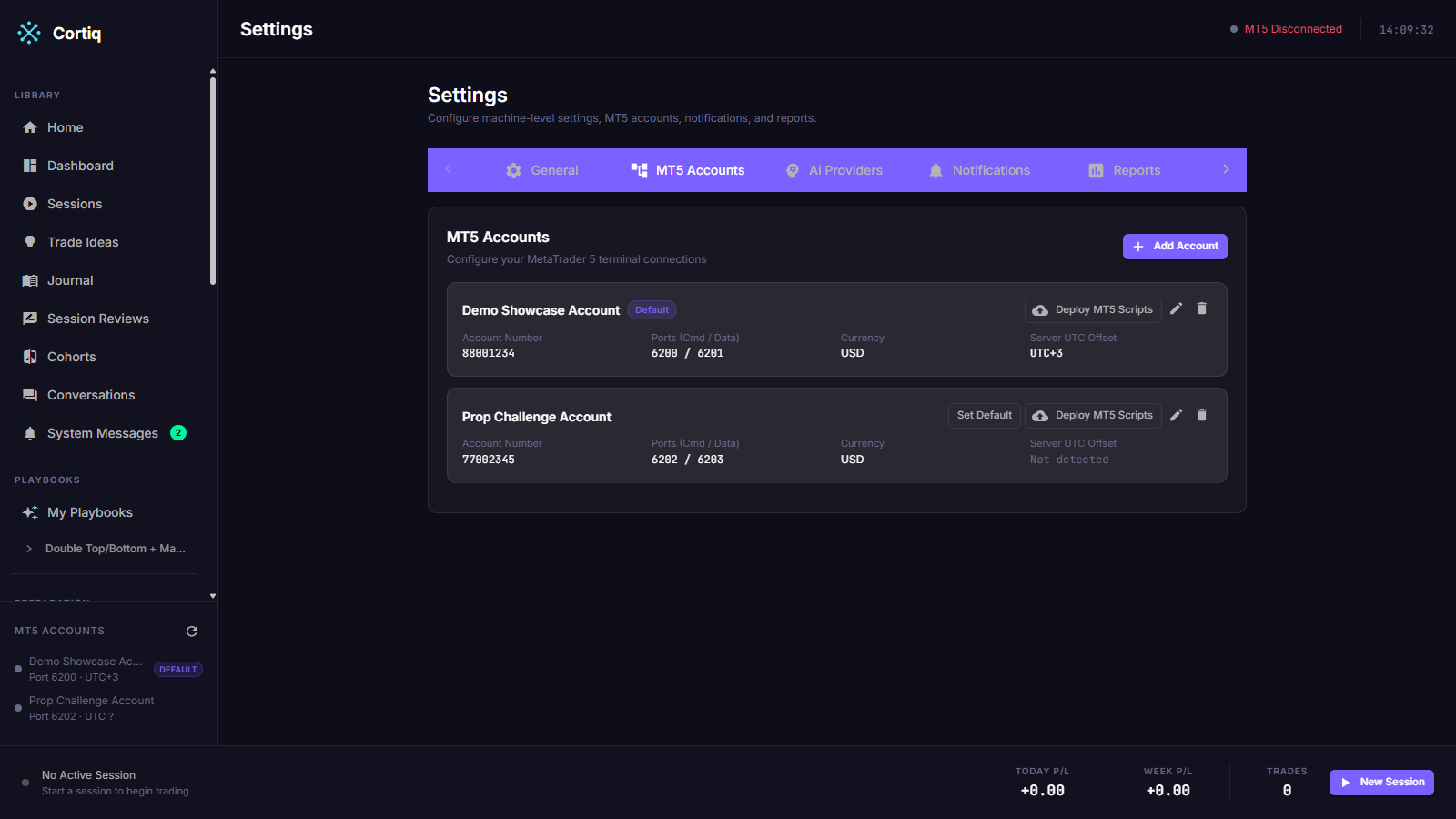
Section titled “1. Configure the MT5 account in Cortiq”Open Settings → MT5 Accounts and add an entry. You’ll need the terminal’s executable path, the data folder, and a unique pair of ZeroMQ ports.
2. Attach ZmqFacade to a chart in MT5
Section titled “2. Attach ZmqFacade to a chart in MT5”Open MetaTrader 5 and drop ZmqFacade.ex5 onto any chart with automated trading enabled. The EA also needs the MQL5 ZeroMQ library installed under MT5’s Include/Zmq/ folder. The EA’s smiley face icon appears in the top-right of the chart when it’s running.

3. Verify the bridge is healthy
Section titled “3. Verify the bridge is healthy”Cortiq’s topbar shows an MT5 health indicator. Green means the bridge is connected and recent heartbeats arrived on time; red means the EA isn’t responding. Don’t start a session until the indicator is green.

Multi-account setup
Section titled “Multi-account setup”Cortiq supports multiple MT5 accounts on the same machine, but each terminal must run on a non-overlapping pair of ZeroMQ ports.
Example pattern (the EA defaults are command port 6200, data port 6201):
- Account 1 — command port
6200, data port6201. - Account 2 — command port
6202, data port6203. - Account 3 — command port
6204, data port6205.
The exact numbers don’t matter — non-overlap does. Two terminals on the same port will collide silently and one of them will appear to “work intermittently”.
Reference
Section titled “Reference”| Setting | Where | Notes |
|---|---|---|
| Terminal path | Settings → MT5 Accounts → Terminal executable | Full path to terminal64.exe. |
| Data folder | Settings → MT5 Accounts → Data folder | Where Cortiq writes the EA companion files. |
| Command port | Settings → MT5 Accounts → ZMQ command port | REQ/REP. Default 6200. Must be unique across accounts. |
| Data port | Settings → MT5 Accounts → ZMQ data port | PUB/SUB. Default 6201. Must be unique across accounts. |
| Default account | Settings → MT5 Accounts → Default | The account that new sessions and trade ideas pre-select. |
Common questions
Section titled “Common questions”Is MT4 supported? No. Only MT5. Brokers that offer both will work as long as you connect through their MT5 build.
Can I run a remote MT5 terminal?
No. Cortiq and MT5 must be on the same Windows machine. The bridge uses localhost ZeroMQ and assumes both processes share the same OS.
What happens if MT5 disconnects mid-session? The session pauses on the next health-check failure. No new orders are placed; open positions remain managed by MT5 itself until the bridge recovers and Cortiq re-attaches.
What to read next
Section titled “What to read next”- First 30 minutes in Cortiq — installs the EA and runs a virtual session end-to-end.
- Sessions — once the bridge is green, this is where you build the session that uses it.
- Risk management — configure global and per-account limits before any live execution.