Discretionary trading
This page explains how to trade an instrument yourself inside Cortiq, using a manual session. By the end you’ll know how manual sessions differ from autonomous ones, how the order ticket sizes a position from your risk, and what Cortiq still does for you while you make the calls.
What this is
Section titled “What this is”A manual session is a session with no AI decision loop. Cortiq never places an order in one. You watch the chart and place the trades.
Everything else a session does still happens: the instrument is prepared before you sit down, the accumulated research and learnings for that market are attached, your risk limits are enforced, and every trade lands in the journal and session review.
Manual is the default session type when you create a session.
How it fits into Cortiq
Section titled “How it fits into Cortiq”| Manual session | Autonomous session | |
|---|---|---|
| Who places orders | You, from the order ticket | The AI decision cycle, subject to your approval settings |
| Decision loop | None — no cycles run | Wakes on your triggers, reads, decides, acts |
| Playbook | Optional, used as reference | At least one is required |
| Data package | Optional | Drives what the AI reads each cycle |
| Trade approval | Not used — you are the one submitting | Tri-state approval policy |
| Risk limits | Enforced | Enforced |
| Journal and review | Written | Written |
A session’s type is fixed when you create it and cannot be changed afterwards. Cloning a session keeps its type.
Before you start
Section titled “Before you start”- An MT5 account connected to Cortiq. See MT5 integration.
- One instrument symbol. A session is locked to exactly one market.
- An active license. See Licensing and support.
An AI provider is not required to place manual trades, but without one Cortiq cannot prepare the market or write the session review.
Create a manual session
Section titled “Create a manual session”- Select New Session.
- Enter a name.
- Leave Session Mode set to Manual.
- Choose the instrument symbol. This is required — a session cannot be created without a real symbol.
- Optionally attach playbooks and a data package as reference context.
- Select Create, then Start.
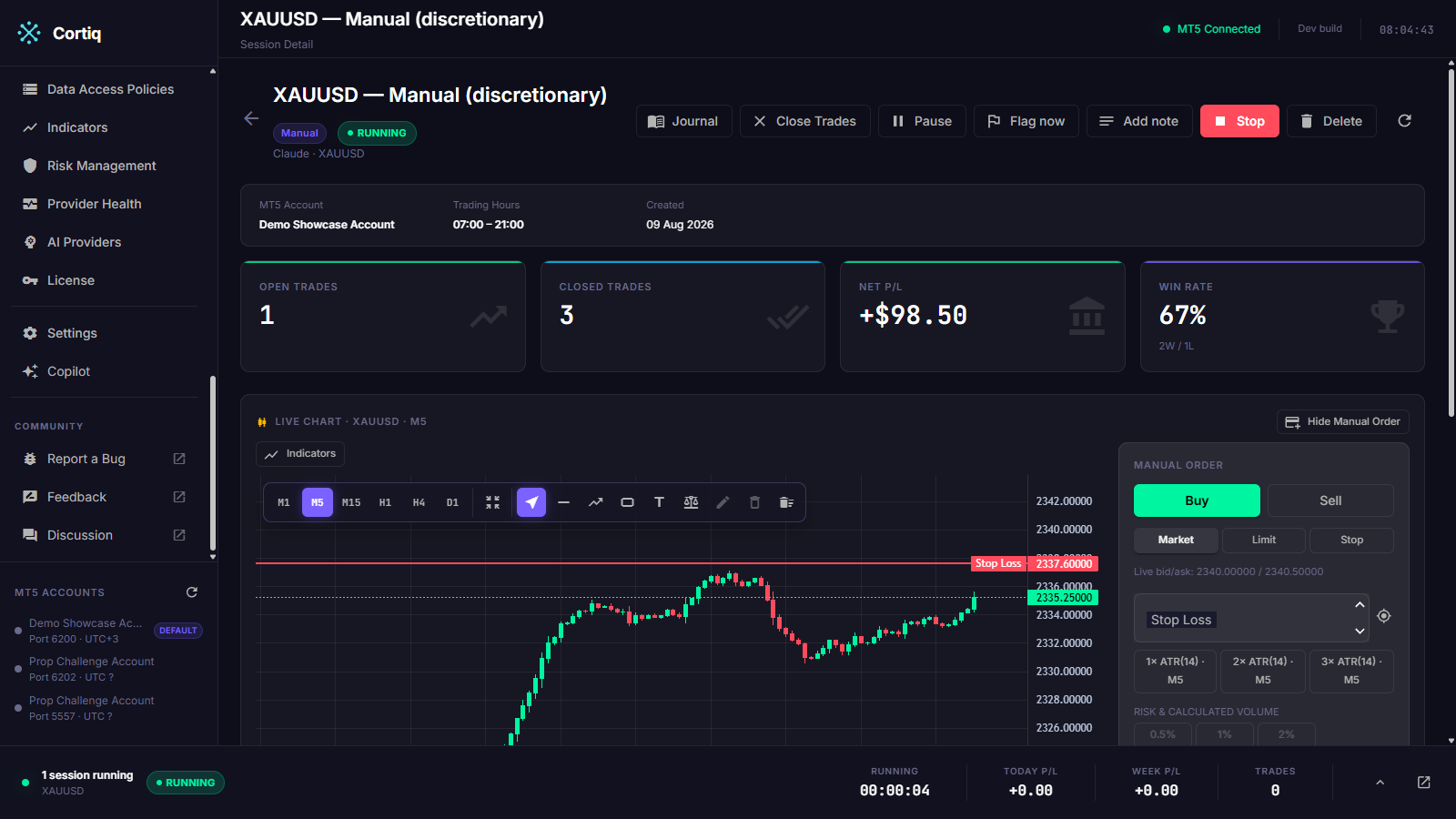
The session must be running before the order ticket will quote a price or calculate a position size.
Place a trade
Section titled “Place a trade”The order ticket sits beside the chart and works in a fixed order: protection first, then risk, then volume, then target.
- Choose Buy or Sell, and Market, Limit, or Stop.
- Set the Stop Loss. Type a price, use a 1×, 2×, or 3× ATR(14) preset calculated on the current chart timeframe, or select the crosshair and click the level on the chart.
- Choose a risk percentage — 0.5%, 1%, or 2%. Cortiq calculates the lot size from your live account balance and the stop distance.
- Optionally set a Target, using the same presets or chart picking.
- Select Place order.
There is no free-form volume field. Position size always comes from a stop distance and a risk percentage, so an order cannot be sized by accident.
While you are filling in the ticket, the planned stop and target are drawn on the chart as dashed lines. Hiding the panel clears them.
Manage an open position
Section titled “Manage an open position”Open positions appear on the Trades tab and draw their entry, stop, and target on the chart. Each row offers:
- Close — close the position at market.
- Partial close — close part of the volume.
- Modify SL/TP — move the stop, the target, or both.
What Cortiq still does for you
Section titled “What Cortiq still does for you”| Capability | What it means in a manual session |
|---|---|
| Preparation | The regime, key levels, structure, and directional skew are generated before the session and refreshed on schedule. |
| Instrument knowledge | Confirmed learnings and their evidence for this market are available in the Instrument Hub. |
| Risk limits | Daily and weekly drawdown, profit targets, trade caps, and loss-streak stops are checked on your orders. See Risk management. |
| Journal | Trades are reconstructed with entry, stop, target, and outcome. See Journal and analytics. |
| Session review | A review of the session is generated the same way it is for an autonomous session. |
| Copilot | Available in the session for analysis and chart annotation. It only submits a trade if you explicitly ask it to. |
Practising first
Section titled “Practising first”Two options let you rehearse without risking money:
- Virtual mode runs a session with no real orders reaching MT5.
- A manual backtest replays historical candles and lets you place orders against them. See Backtesting.
Related pages
Section titled “Related pages”- Charting — the chart surface, timeframes, indicators, and markers.
- Sessions — session states and configuration.
- Risk management — the limits applied to every order.
- Backtesting — replay a market and trade it by hand.